
Getting started in Counter-Strike 2 can feel overwhelming, especially when you discover how much your settings affect your aim, recoil control, and overall comfort in the game. New players often underestimate how important crosshair tuning, viewmodel adjustments, and sensitivity optimization are. In reality, these elements are a core part of any CS2 setup guide and play a major role in shaping your accuracy and consistency.
This article breaks down the best beginner-friendly options for each category so you can jump into CS2 with confidence. Whether you’re learning aim fundamentals, exploring csgo knife skins to upgrade your style, or preparing your full CS2 PC setup, these settings will help you improve faster and enjoy a smoother, more consistent gameplay experience.
Why Settings Matter for New CS2 Players
CS2 is a precision-based shooter. Every pixel of movement matters. Your aim, recoil control, target tracking, and visibility rely on correct configuration – especially for those new to Counter-Strike.
New players usually struggle because:
- their sensitivity is too high
- their crosshair is too large or unclear
- their viewmodel blocks too much of the screen
- their movement feels inconsistent across weapons
- their gameplay comfort isn’t optimized
If you’re looking to improve, the right settings will give you a strong foundation. These recommendations are tailored specifically for beginners and are part of essential CS2 new player tips used by coaches, streamers, and esports rookies.
Best CS2 Crosshair Settings for Beginners
Your crosshair determines how clearly you see your target, how consistent your aim feels, and how easily you can track enemies. Beginners should use a simple, static, non-distracting crosshair.
Recommended Beginner Crosshair
cl_crosshairalpha “255”
cl_crosshaircolor “5”
cl_crosshairdot “0”
cl_crosshairgap “-2”
cl_crosshairsize “2.5”
cl_crosshairstyle “4”
cl_crosshairthickness “0.5”
cl_crosshairoutline “1”
Why this works:
- small → accuracy-focused
- static → predictable and stable
- bright → visible on all maps
- no animations → less visual noise
- pro-like → same style used by most top players
This is a classic beginner-friendly setup that won’t distract you and will help develop consistent muscle memory early on.
Best Viewmodel Settings for Maximum Visibility
The viewmodel controls how your weapon appears on screen. Many new players unknowingly block half their vision because the default CS2 viewmodel places the weapon too high.
By adjusting it, you increase visibility and reaction time – a core part of CS2 essential gear and in-game optimization.
Recommended Beginner Viewmodel
viewmodel_fov “68”
viewmodel_offset_x “2”
viewmodel_offset_y “2”
viewmodel_offset_z “-2”
What this does:
- moves gun lower → less screen blocking
- gives wider FOV around your weapon
- helps track enemies easier
- feels cleaner and more comfortable
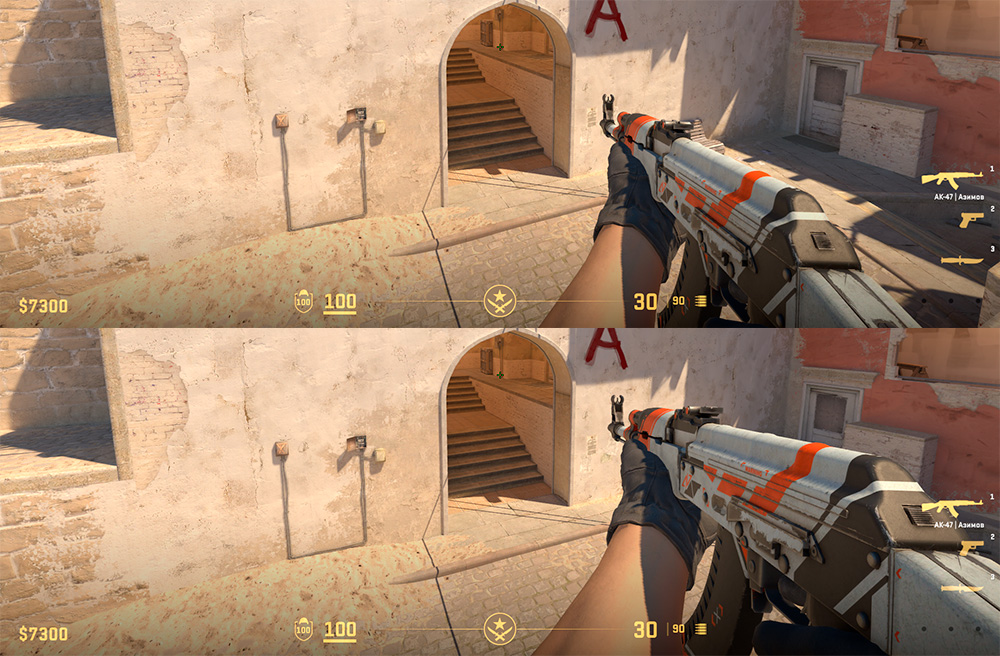
This layout is used widely across professional play. It is ideal for new players who benefit from having a clearer field of view during gunfights.
Best Sensitivity Settings for Beginners
Your mouse sensitivity determines how precisely you can aim. High sensitivity is common with new players because it feels “faster,” but it leads to inconsistency.
Low to medium sensitivity gives the best control and helps build correct habits early on. This is essential for any CS2 gaming gear setup.
Recommended Starting Sensitivity
- DPI: 800
- In-game Sensitivity: 1.0 – 1.5
- eDPI Target: 800 – 1200
Most professional players use 800–1200 eDPI because it’s slow enough for precision but fast enough for flicks.
What beginners gain from lower sensitivity:
- more stable crosshair placement
- better micro-adjustments
- improved spray control
- less over-aiming or jerking
- faster improvement over time
If this feels slow at first – don’t worry. Every new CS2 player adjusts quickly within a few matches.
Extra Settings to Improve Beginner Performance
Besides sensitivity and crosshair, new players can improve further with these additions to their CS2 PC setup.
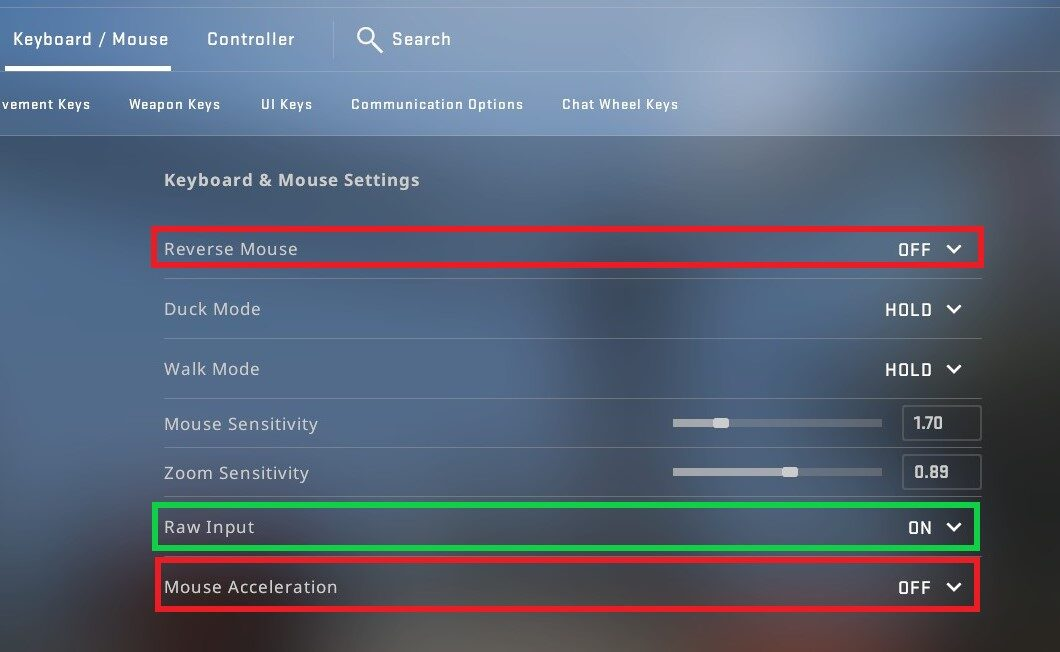
Raw Input
m_rawinput “1”
Makes your mouse movement feel consistent across all programs.
No acceleration
m_mouseaccel “0”
Prevents unpredictable cursor movement.
Lower input lag
- enable fullscreen
- turn on NVIDIA Low Latency Mode
- reduce background apps
Clearer game visibility
- use a minimum of 144Hz monitor
- set digital vibrance to 60–80%
- use low/med graphics settings for cleaner visibility
These optimizations ensure that your mechanics and reaction time improve naturally.
LIS.SKINS – Your Resource for Building a Better Beginner Loadout
When you’re improving your mechanics, it’s also the perfect time to start building your first CS2 inventory. LIS.SKINS offers a clean, safe, and beginner-friendly marketplace where new players can explore affordable skins that match their style, and even use features like instant sell CS2 skins to quickly cash out items without waiting for buyers.
Why LIS.SKINS is great for beginners:
- transparent prices (no hidden fees)
- instant buy & sell system
- safe marketplace verified by thousands of players
- skins for every budget – from cheap rifles to premium knives
- no overpay like on Steam Market

Beginners especially love LIS.SKINS because it helps them create a personalized look while keeping their spending small. A great skin doesn’t improve aim – but it does make playing more fun and motivates you to keep learning. If you’re building your first loadout, LIS.SKINS is the ideal place to start exploring CS2 cosmetics.